

When to use a tag versus using an aliasUse aliases when you need to reference a specific artifact version uniquely. For example, use an alias such as ‘production’ or ‘latest’ to ensure that
artifact_name:alias always points to a single, specific version.Use tags when you want more flexibility for grouping or searching. Tags are ideal when multiple versions or collections can share the same label, and you don’t need the guarantee that only one version is associated with a specific identifier.Add a tag to a collection
Use the W&B UI or Python SDK to add a tag to a collection.- W&B UI
- Python SDK
Use the W&B UI to add a tag to a collection:
- Navigate to the W&B Registry.
- Click on a registry card.
- Click View details next to the name of a collection.
- Within the collection card, click on the plus icon (+) next to the Tags field and type in the name of the tag.
- Press Enter on your keyboard.
Update tags that belong to a collection
Update a tag programmatically by reassigning thetags attribute or mutating it in place. W&B recommends reassigning the tags attribute because it follows Python best practices.
The following code snippet shows common ways to update the list of tags through reassignment. For brevity, it continues the code example from Add a tag to a collection:
View tags that belong to a collection
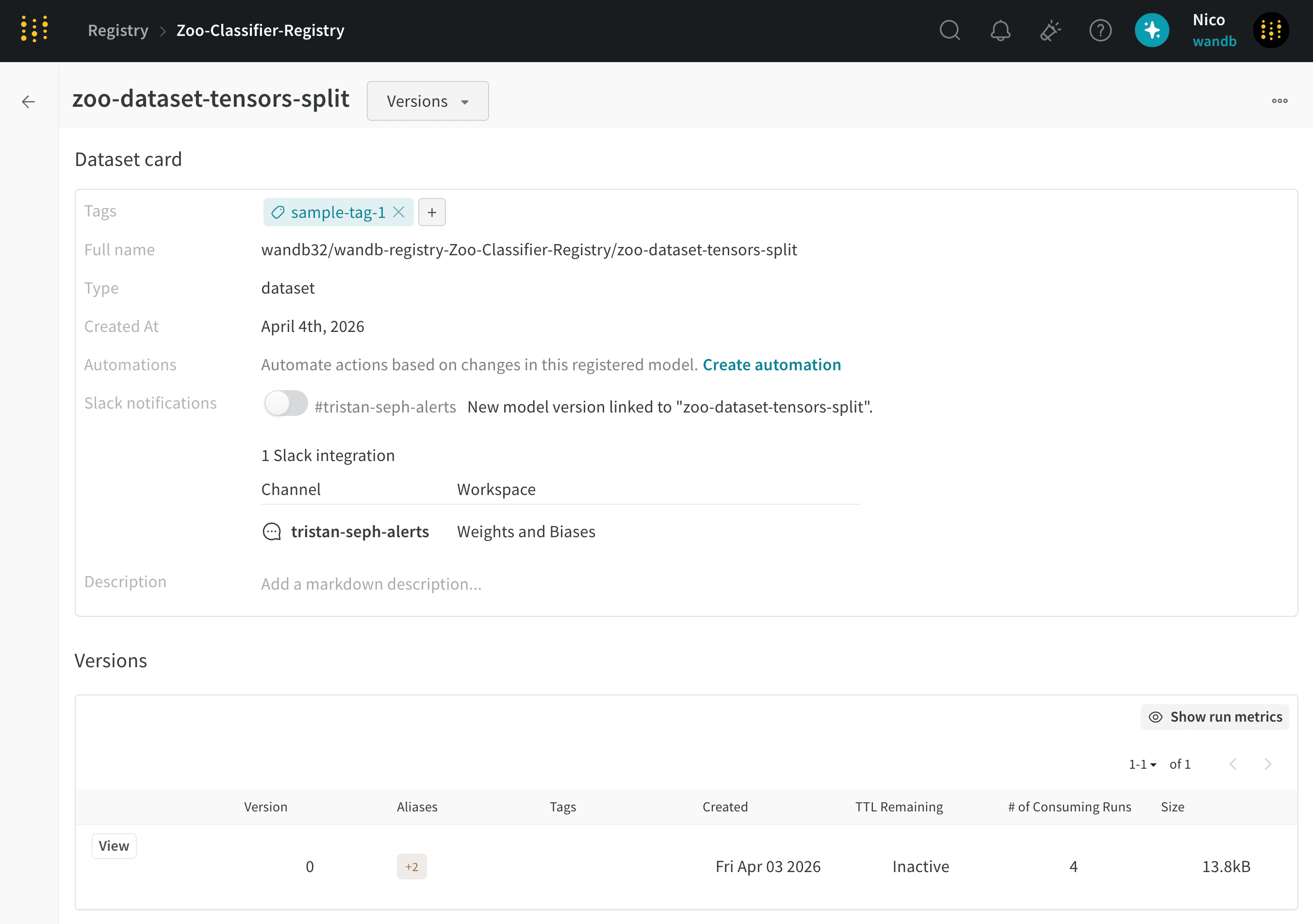
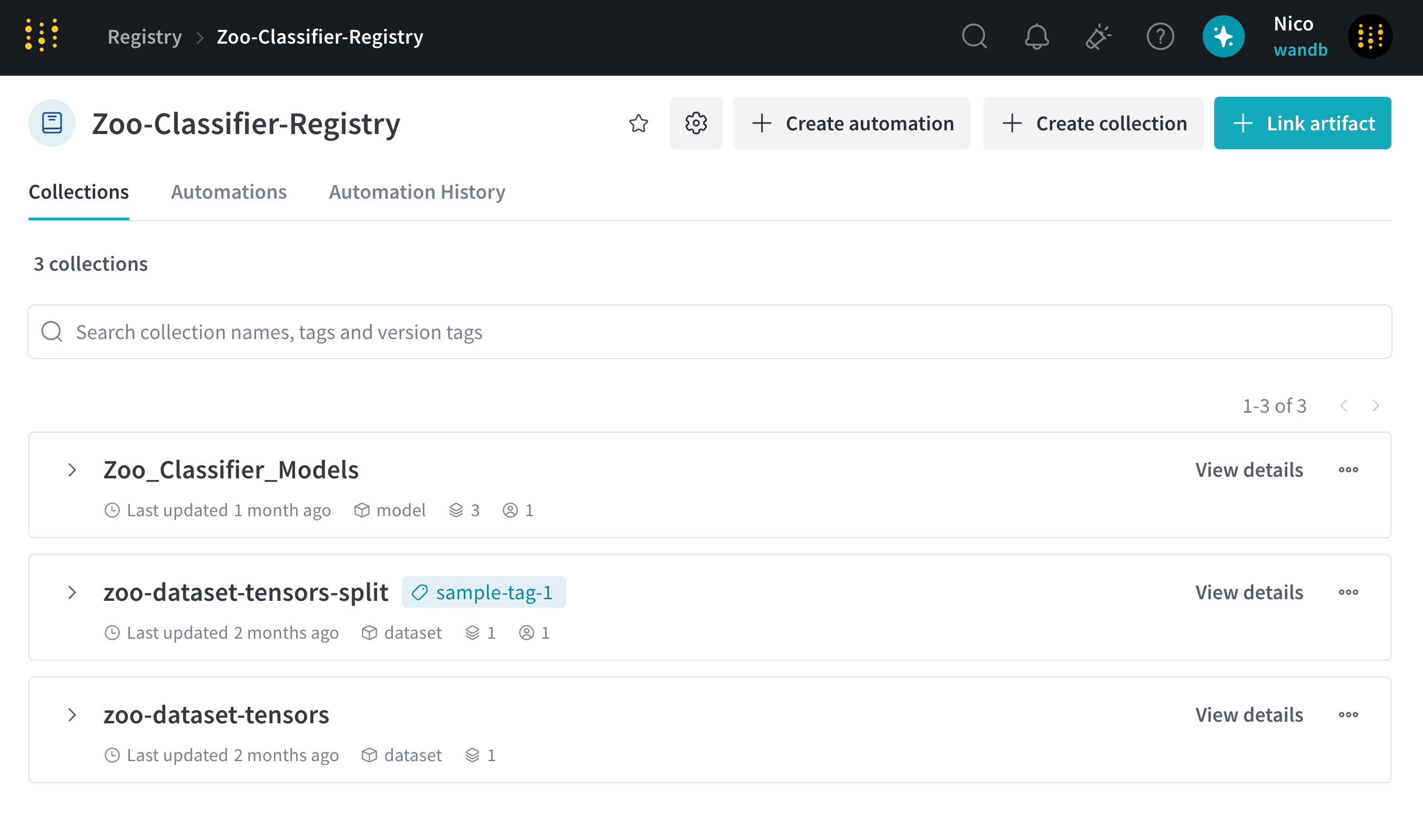
Use the W&B UI to view the tags added to a collection.- Navigate to the W&B Registry.
- Click on a registry card.
- Click View details next to the name of a collection.
Remove a tag from a collection
Use the W&B UI to remove a tag from a collection.- Navigate to the W&B Registry.
- Click on a registry card.
- Click View details next to the name of a collection.
- Within the collection card, hover your mouse over the name of the tag you want to remove.
- Click on the cancel button (X icon).
Add a tag to an artifact version
You can also tag individual artifact versions within a collection. Add a tag to an artifact version that is linked to a collection with the W&B UI or with the Python SDK.- W&B UI
- Python SDK
Use the W&B UI to add a tag to an artifact version:
- Navigate to the W&B Registry.
- Click on a registry card.
- Click View details next to the name of the collection you want to add a tag to.
- Scroll down to Versions.
- Click View next to an artifact version.
- Within the Version tab, click on the plus icon (+) next to the Tags field and type in the name of the tag.
- Press Enter on your keyboard.
Update tags that belong to an artifact version
When you need to change the tags on an existing artifact version, you can update them programmatically by either reassigning or mutating thetags attribute. W&B recommends that you reassign the tags attribute rather than mutate it in place, which is also a common Python best practice.
The following code snippet shows common ways to update the list of tags through reassignment. For brevity, it continues the code example from Add a tag to an artifact version:
View tags that belong to an artifact version
View the tags that belong to an artifact version linked to a registry with the W&B UI or with the Python SDK.- W&B UI
- Python SDK
Use the W&B UI to view the tags that belong to an artifact version: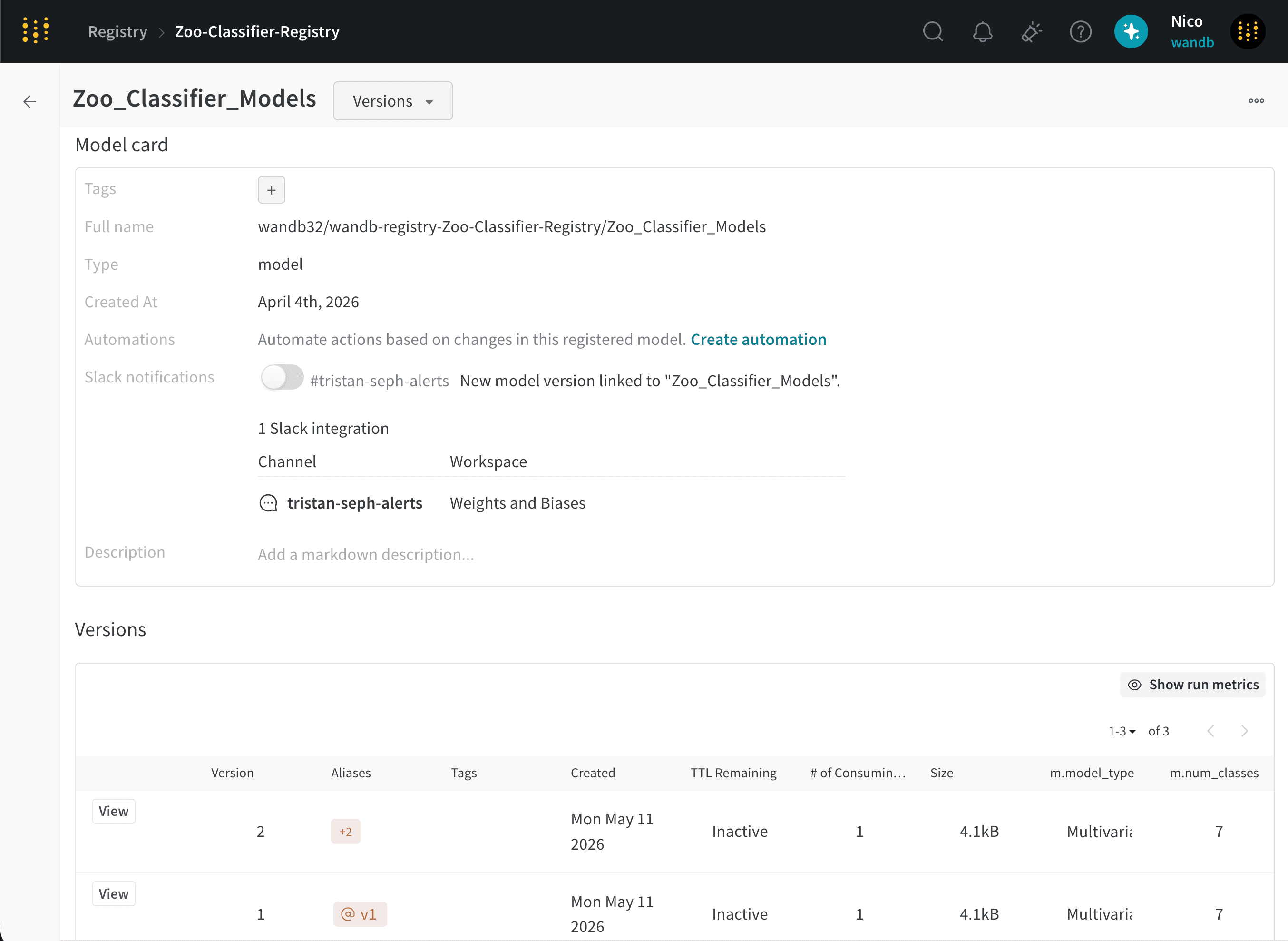
- Navigate to the W&B Registry.
- Click on a registry card.
- Click View details next to the name of the collection you want to add a tag to.
- Scroll down to the Versions section.
Remove a tag from an artifact version
Remove a tag from an artifact version when the tag no longer applies. Use the W&B UI to remove a tag from an artifact version:- Navigate to the W&B Registry.
- Click on a registry card.
- Click View details next to the name of the collection you want to add a tag to.
- Scroll down to Versions.
- Click View next to an artifact version.
- Within the Version tab, hover your mouse over the name of the tag.
- Click on the cancel button (X icon).