

chatbot that contains a collection for model artifacts, another collection for dataset artifacts, and another collection for fine-tuned model artifacts.
How you organize a registry and their collections is up to you.
If you’re familiar with W&B Model Registry, you might know about registered models. The W&B Registry now refers to registered models as collections.
Collection types
Each collection accepts one, and only one, type of artifact. The type you specify restricts which artifacts you, and other members of your organization, can link to that collection.You can think of artifact types similar to data types in programming languages such as Python. In this analogy, a collection can store strings, integers, or floats but not a mix of these data types.
dataset artifact types. You can only link future artifact versions of type dataset to this collection. Similarly, you can only link artifacts of type model to a collection that accepts only model artifact types.
You specify an artifact’s type when you create that artifact object. See the
type field in wandb.Artifact(). Replace the bracketed placeholders with your own values:Check the artifact types a collection accepts
Before you link to a collection, inspect the artifact type that the collection accepts. This helps you avoid link errors caused by mismatched artifact types. You can inspect the artifact types that a collection accepts programmatically with the W&B Python SDK or interactively with the W&B UI.An error message appears if you try to link an artifact to a collection that doesn’t accept that artifact type.
- W&B UI
- Python SDK (Beta)
You can find the accepted artifact types on the registry card on the homepage or within a registry’s settings page.For both methods, first navigate to your W&B Registry.Within the homepage of the W&B Registry, you can view the accepted artifact types by scrolling to the registry card of that registry. The labels within the registry card list the artifact types that the registry accepts.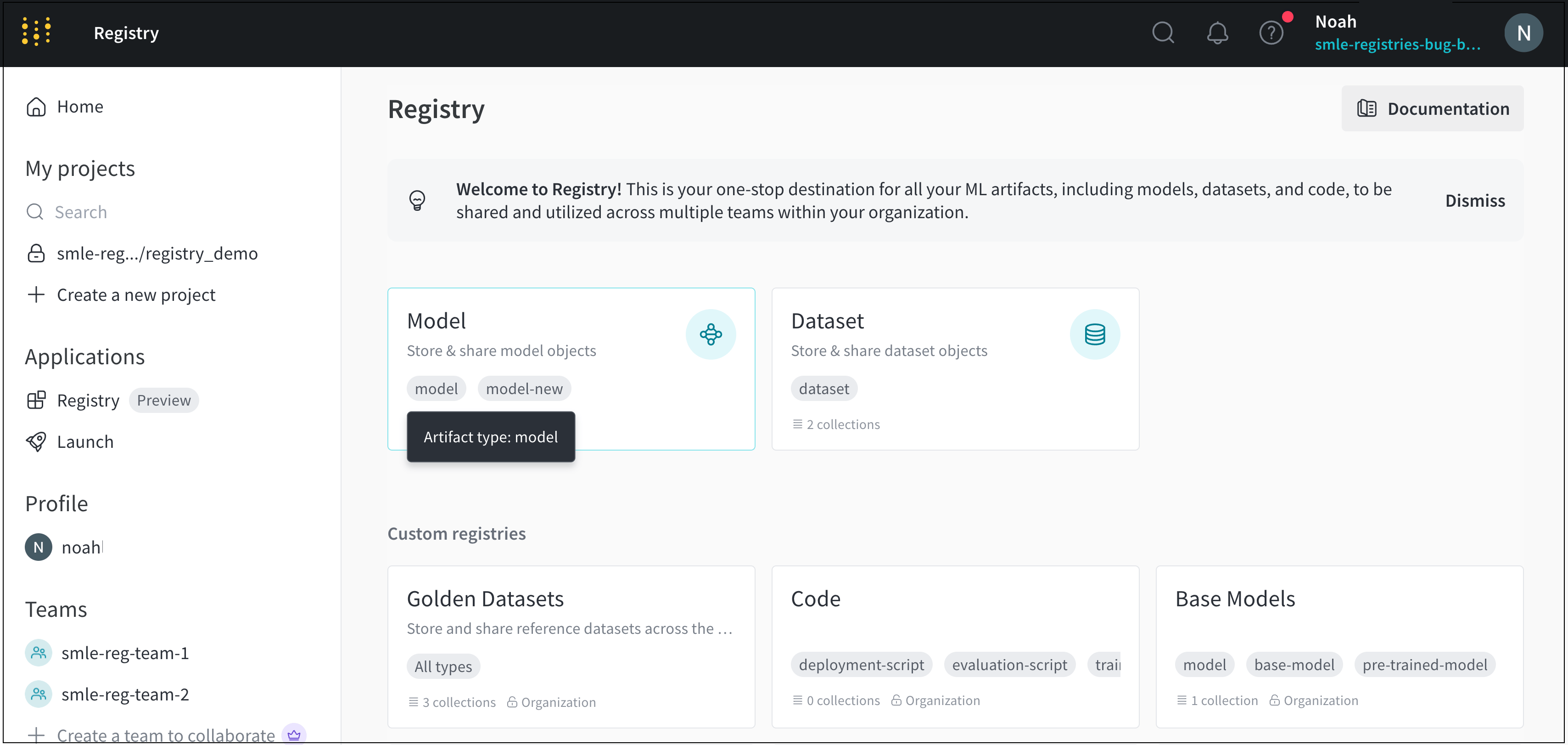
model and model-new.To view accepted artifact types within a registry’s settings page:- Click the registry card you want to view the settings for.
- Click the gear icon in the upper right corner.
- Scroll to the Accepted artifact types field.
Create a collection
Interactively or programmatically create a collection within a registry. You can’t change the type of artifact that a collection accepts after you create it.Create a collection programmatically
Use thewandb.Run.link_artifact() method to link an artifact to a collection. Specify both the collection and the registry to the target_path field as a path that takes the form of:
registry_name is the name of the registry and collection_name is the name of the collection. Append the prefix wandb-registry- to the registry name.
W&B automatically creates a collection for you if you try to link an artifact to a collection that doesn’t exist. If you specify a collection that exists, W&B links the artifact to the existing collection.
Create a collection interactively
The following steps describe how to interactively create a collection using the W&B Registry:- Navigate to the W&B Registry at https://wandb.ai/registry/.
- Select a registry.
- Click the Create collection button in the upper-right corner.
- Provide a name for your collection in the Name field.
- Select a type from the Type dropdown. Or, if the registry enables custom artifact types, provide one or more artifact types that this collection accepts.
- Optional: Provide a description of your collection in the Description field.
- Optional: Add one or more tags in the Tags field.
- Click Link version.
- From the Project dropdown, select the project where your artifact is stored.
- From the Artifact collection dropdown, select your artifact.
- From the Version dropdown, select the artifact version you want to link to your collection.
- Click the Create collection button.