

Manage users
The following sections describe how to add users or teams to a registry, remove them, and change a registry’s owner.Add a user or a team
Registry admins can add individual users or entire teams to a registry. To add a user or team to a registry:- Navigate to the W&B Registry.
- Select the registry you want to add a user or team to.
- Click the gear icon in the upper right corner to access the registry settings.
- In the Registry access section, click Add access.
- Specify one or more user names, emails, or team names in the Include users and teams field.
- Click Add access.
Remove a user or team
A registry admin can remove individual users or entire teams from a registry. To remove a user or team from a registry:- Navigate to the W&B Registry at https://wandb.ai/registry/.
- Select the registry you want to remove a user from.
- Click the gear icon in the upper right corner to access the registry settings.
- Navigate to the Registry access section and type the username, email, or team you want to remove.
- Click the Delete button.
Removing a user from a team also removes that user’s access to the registry.
Change the owner of a registry
A registry admin can designate any member as a registry’s owner, including a Restricted Viewer or a Viewer. Registry ownership is for accountability and doesn’t confer any additional permissions beyond those granted by the user’s assigned role. To change the owner:- Navigate to the W&B Registry at https://wandb.ai/registry/.
- Select the registry you want to configure.
- Click the gear icon in the upper right corner.
- Scroll to the Registry members and roles section.
- Hover over the row for a member.
- Click the action () menu at the end of the row, then click Make owner.
Configure registry roles
This section shows how to configure roles for registry members. The role you assign determines what actions a user or team can perform in the registry. For more information about registry roles, including the capabilities of each role, order of precedence, and defaults, see Details about registry roles.- Navigate to the W&B Registry at https://wandb.ai/registry/.
- Select the registry you want to configure.
- Click the gear icon in the upper right corner.
- Scroll to the Registry members and roles section.
- Within the Member field, search for the user or team you want to edit permissions for.
- In the Registry role column, click the user’s role.
- From the dropdown, select the role you want to assign to the user.
Details about registry roles
The following sections give more information about registry roles.A team’s registry role is separate from each member’s team role. If you belong to a team that has been added to a registry, W&B considers the team’s assigned registry role, not your role within the team, when it calculates your effective registry role.
Role types
W&B Registry has the following roles:- Restricted Viewer: Provides read-only access to registry artifact metadata. Restricted Viewers can view artifact details, but they cannot access artifact file contents or create, update, or delete collections, automations, or other registry resources. This role is available for Dedicated Cloud and Self-Managed Server v0.75.0 or newer.
- Viewer: Provides read-only access to registry artifacts with the ability to view collection details, view linked artifact details, download artifacts, and use artifacts with
wandb.Run.use_artifact()in the W&B SDK. - Member: Provides permissions to create, update, and delete collections, automations, and other registry resources. Also provides read access to registry artifacts.
- Admin: Provides all permissions that a Member has, as well as permissions to manage registry settings and user roles.
Role permissions
The following table lists each registry role, along with the permissions each role provides:Default roles
W&B automatically assigns a default registry role to a user or team when they are added to a registry. The default role is the starting role that appears in the registry’s role dropdown. It is not always the user’s final, effective role. The default role depends on the deployment type and the entity type:
1: Service accounts cannot have Viewer or Restricted Viewer roles. See Service account access for how a service account’s access is determined.
A registry admin can assign or modify roles for users and teams in the registry.
See Configure user roles in a registry for more information.
Effective and inherited registry roles
A user’s effective registry role is the role that determines what they can actually do in a registry. The registry’s membership list shows this role in light gray next to the role dropdown in the user’s row.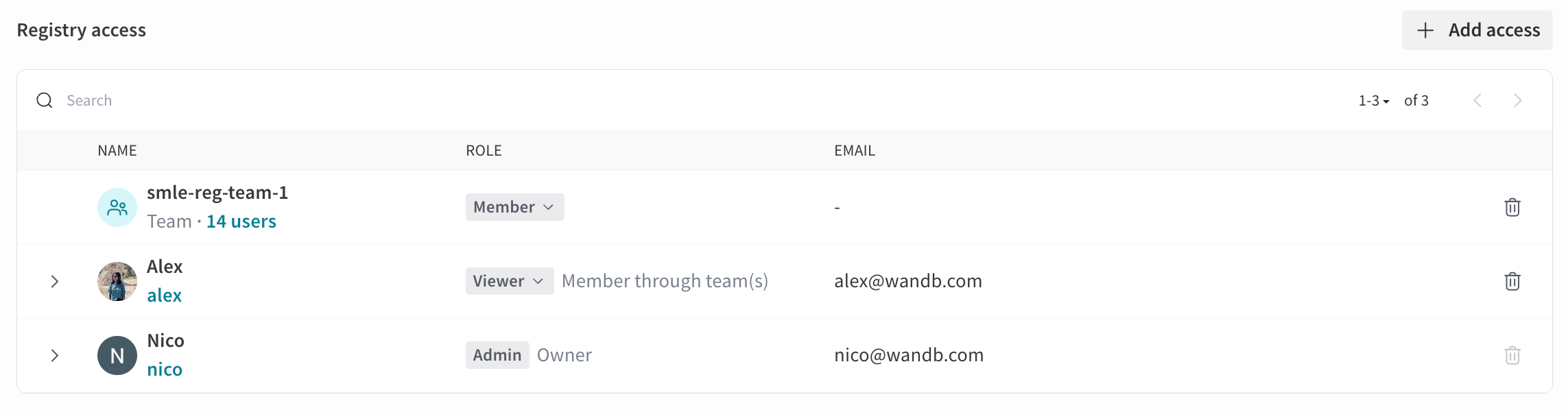
- The default registry role for the organization, if it is not a restricted registry.
- Their assigned role in the registry.
- The role(s) assigned in the registry to any team(s) they are a part of.
- A user with the Viewer role in a registry is effectively an Admin if they belong to a team that has the Admin role in that registry.
- A user with the Viewer role in a registry is effectively a Member if they belong to a team that has the Member role in that registry.
- A user with the Member role in a registry is effectively a Member even if they belong to a team that has the Viewer role in that registry.
Service accounts do not inherit elevated registry permissions from their teams. See Service account access for more information.
Service account access
Service accounts are an exception to inherited registry roles. A service account does not inherit elevated registry permissions from its team. For example, if a team has Admin access to a registry, service accounts on that team receive only the automatic service account access level, not Admin access. A registry admin can explicitly grant a service account higher access by adding the service account to the registry with a Member or Admin role. Automatic service account access depends on registry visibility:- Organization visibility: A service account automatically has Member access.
- Restricted visibility: A service account automatically has Member access only if one of its teams has Member or Admin access to the registry. If all of the service account’s teams have Viewer or Restricted Viewer access, the service account does not receive access automatically.
Restricted Viewer role details
The Restricted Viewer role is useful for granting broad visibility into a registry without exposing artifact contents. The following sections describe its availability, behavior, and SDK compatibility. The Restricted Viewer role is Generally Available (GA). For Dedicated Cloud and Self-Managed, Server v0.75.0 or later is required. This role provides read-only access to registry artifacts without the ability to create, update, or delete collections, automations, or other registry resources. Unlike a Viewer, a Restricted Viewer:- Can’t download artifact files or access file contents.
- Can’t use artifacts with
wandb.Run.use_artifact()in the W&B SDK.
SDK compatibility
SDK version requirementTo use the W&B SDK to access artifacts as a Restricted Viewer, you must use W&B SDK version 0.19.9 or later. Otherwise, some SDK commands result in permission errors.
Cross-registry permissions
A user can have different roles in different registries. For example, a user can be a Restricted Viewer in Registry A and a Viewer in Registry B. In this case:- The same artifact linked to both registries has different access levels.
- In Registry A, the user is a Restricted Viewer and can’t download files or use the artifact.
- In Registry B, the user is a Viewer and can download files and use the artifact.
- In other words, the registry in which the user accesses the artifact determines access.